
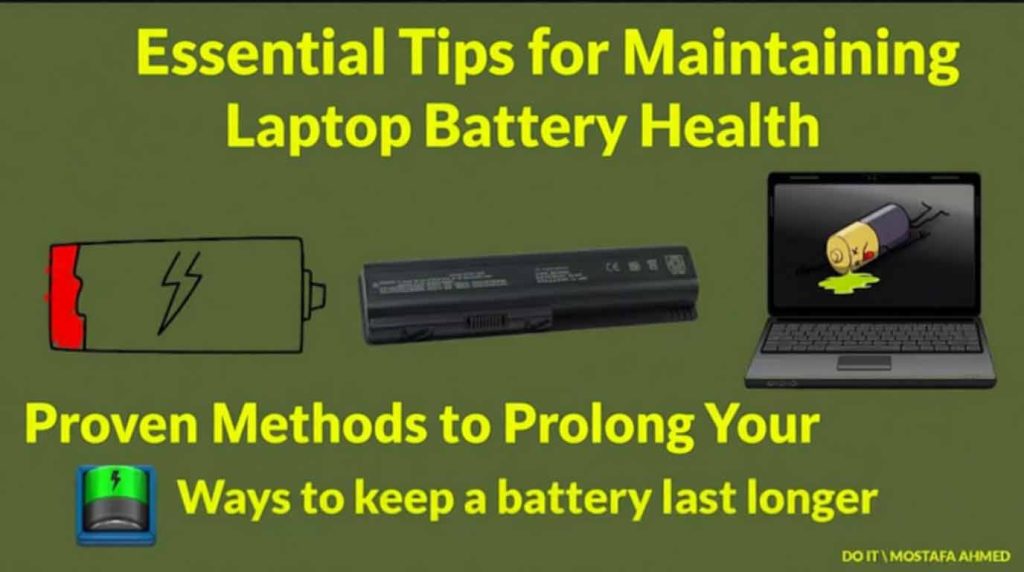
Laptop Battery Power Saving & Maintenance Tips
When it comes to laptops, users often wonder how to save energy wisely, extend battery life, and maintain long-term performance. With the right power management, usage habits, and regular maintenance, you can significantly improve battery efficiency and safety.
💡 1. Quick Sleep Mode Tips
If you’re not using your laptop for a short while, letting it enter sleep mode automatically is a good way to save power.
But there’s an even faster method to make your laptop sleep instantly:
👉 Simply close the lid or turn off the display.
This immediately puts the system into sleep mode. When you reopen the display, your session restores seamlessly — quick and efficient.
🔋 2. Power-Saving Methods
The TFT display is one of the most power-hungry parts of a laptop. To reduce energy consumption, most brands offer several built-in power-saving features, including:
- Lower the Screen Brightness
- Adjust brightness via shortcut keys (usually 6–8 levels).
- When running on battery, dim the screen as much as comfortable to extend runtime.
- Automatic Screen Shutoff
- Set your display to turn off after a period of inactivity to cut down energy usage.
- Enable Power-Saving Mode
- Many brands include dedicated software that automatically adjusts CPU and screen power consumption.
⚙️ 3. Detailed Power Management Settings
1. Power Settings in BIOS
Most laptops allow energy optimization directly through the BIOS (or CMOS) under Power Savings options. You can typically choose between:
- Maximum Battery Life – prioritizes endurance
- Maximum Performance – prioritizes speed and responsiveness
Common power states include:
- Idle Mode – reduces power slightly when inactive
- Standby Mode – turns off the screen and hard drive but resumes quickly
- Suspend Mode – saves memory contents to the hard drive with near-zero power draw
In CMOS settings, you can also adjust:
- Standby Timeout – delay before standby mode
- Suspend Timeout – delay before hibernation
Options vary slightly by BIOS version, so refer to your system prompts or manual for guidance.
2. Power Management in Windows
Windows provides an intuitive power management interface:
- Go to Control Panel → Power Options
- Under “Power Schemes,” choose Portable/Laptop
- Adjust settings for:
- System idle time
- Turn off display
- Turn off hard disks
Additionally, disabling unused functions like Infrared, Bluetooth, and Wi-Fi when not needed can further extend battery runtime.
🔔 4. Battery Low Power Alerts
Windows includes a built-in battery alert system to help prevent data loss:
- Open Control Panel → Power Options → Alarms tab.
- Set:
- Low Battery Alarm – recommend around 10%
- Critical Battery Alarm – recommend around 3%
- Enable both Sound Alert and On-Screen Notification to ensure timely warnings.
🧰 5. Battery Monitoring & Management Software
Beyond built-in tools, you can use third-party apps like PowerCenter to monitor battery health:
- Displays remaining power percentage and estimated runtime
- Offers detailed, compact, and taskbar-only views
- Supports multiple alert modes to prevent data loss
- Automatically detects battery status changes to optimize CPU and power usage
🧹 6. Battery Care & Maintenance
- Keep Battery Contacts Clean
- Wipe the battery terminals and contacts regularly with a dry cloth to prevent power leakage.
- Proper Storage for Long-Term Inactivity
- Discharge to around 40–60%, remove the battery, and store it in a cool, dry place.
- Avoid metal or magnetic contact during storage.
- Occasional Full Discharge
- Fully draining the battery occasionally helps recalibrate its capacity indicator.
- In Power Management, choose Battery Drain Mode
- Set all “On Battery” options to Never
- Disable all low-battery alerts
- Run a high-load program (e.g., 3D graphics) until automatic shutdown
🔧 7. Battery Cell Replacement Tips
If your battery lasts less than 30 minutes, the cells are likely degraded and should be replaced. Keep in mind:
- Replace all cells if more than half are damaged.
- Use cells of the same brand, capacity, and similar internal resistance.
- If no spot welder is available, solder quickly with minimal heating.
- Keep external power connected to prevent protection circuit lockout.
- Never reverse cell polarity, and insulate cells properly.
⚙️ 8. New Battery Activation Myths
The old advice to “fully charge and discharge three times” for new batteries is outdated.
Modern lithium batteries are pre-activated at the factory and ready for normal use.
- First charge: 2–3 hours is sufficient (no need for 14 hours).
- Repeated full discharges: accelerate aging and should be avoided.
💡 9. Smart Usage to Extend Battery Life
- Avoid Full or Deep Discharges
- Lithium batteries dislike staying at 100% or 0% for long.
- The ideal range is 20%–80%, which greatly prolongs lifespan.
- Avoid High Temperatures
- Heat speeds up chemical aging and can be hazardous.
- Avoid direct sunlight, hot cars, or charging during heavy workloads.
- Use Original or Certified Adapters
- Incorrect voltage may cause overcharging or damage cells.
- Always use original or brand-certified chargers.
- Avoid Constant Plugging/Unplugging
- Frequent switching between AC and battery power adds wear cycles.
- For extended use, keep the power adapter plugged in.
- Use Cooling Pads or Elevate the Laptop
- Good ventilation helps lower battery temperature and prevent heat buildup.
🔋 10. Safe & Scientific Charging Habits
- No Need for Full Discharge Before First Use
- Modern lithium batteries have no “memory effect.” Just charge them fully once before use.
- Avoid Heavy Tasks While Charging
- Gaming, video editing, or rendering while charging increases heat and reduces lifespan.
- Alternate Between Plugged and Battery Use
- When working long hours on AC power, unplug occasionally to keep cells active.
- Calibrate the Battery Regularly
- Every 1–2 months, perform a full charge–discharge cycle (from 100% down to about 5%, then recharge) to keep the OS battery gauge accurate.
📘 Summary
Your laptop battery’s endurance and lifespan depend on smart use, energy settings, and regular maintenance.
By following these three key rules, you can keep your battery healthy for years:
✅ Maintain moderate charge levels (20%–80%)
✅ Control temperature and keep contacts clean
✅ Use power-saving modes and manage energy wisely






Comments (0)